The 7 best tools for beginner Software Engineers/Developers going into 2022Total Views:1
10 min read
Total Views:1
10 min read


Share This Article on Social Media
The 7 best tools for beginner Software Engineers going into 2022
When you are a beginner Software Engineer, the abundance of tools at your disposal can be a bit overwhelming at first. There is so much to choose from, and although that is a privilege, it can be hard to know which tools will actually help you in becoming a better programmer.
To make things easier for you, I put together a list of the 7 best tools for Software Engineers. These have not only helped me improve my skills, but have also made life easier in numerous aspects! Although the list is numbered, there is really no order as to which one of them is the best, they are all equally helpful in their own way.
-
Tailwind CSS
Tailwind CSS describe themselves as a utility-first CSS framework. What does that mean? Instead of focusing on the functionality of the item you style, Tailwind has its focus on how it should be displayed. With this technique developers can easily test out new styles or change the layout. Tailwind CSS is packed with classes like flex, pt-4, text-center and rotate-90, to build any design you like directly in your markup.
It is really easy to use and has flex and grid models right out of the box. This really helps limit the amount of CSS Utilities required for your project. For example the following HTML + TailwindCSS:
<div class="bg-gray-800 w-full p-32">
	<div class="flex flex-col md:flex-row justify-center items-center">
		<div class="p-16 m-2 flex bg-purple-500 text-white">Box 1</div>
		<div class="p-16 m-2 flex bg-blue-500 text-white">Box 2</div>
		<div class="p-16 m-2 flex bg-indigo-500 text-white">Box 3</div>
	</div>
</div>
Renders the following responsive content - test it out by resizing your browser! To learn more about responsive design with Tailwind CSS - read the Official Documentation
Box 1Box 2Box 3 -
Visual Studio Code
Visual Studio Code is a great IDE application to use for your code workflow with the amazing out of the box features like the Git/Source/Terminal integrations, it's hard to not be impressed. There are four main VS Code Extensions that really improved my coding while using this application.
-
Live Server
The Live Server of Visual Studio Code allows you to launch a development local Server with a live reload feature for static and dynamic pages. This will make working on a project so much easier, as you get an instant, up-to-date view of your changes. This is especially useful for plain HTML/CSS rendering or when youre not explicitly working with a framework that supports hot-reloads out of the box i.e: React, Next, Vue, Svelte, Angular, etc..
Launch a local development server with live reload feature for static & dynamic pages.

-
Prettier Code Formatter
Prettier will parse your code and re-print it with its own rules to enforce a consistent style. This code formatter will wrap your code if necessary.
More information can be found here:
https://github.com/prettier/prettier-vscode
https://marketplace.visualstudio.com/items?itemName=esbenp.prettier-vscode
-
TODO Highlight
The TODO Highlight is an extension that allows you to highlight TODO, FIXME and other similar annotations within your code. You might wonder why this is useful. It will happen at times that you will publish your code to production without reviewing the TODOs that you’ve added while coding, simply because you forgot. By automatically highlighting them, these TODOs are more likely to catch your attention and remind you of things not yet done.

-
Remote-SSH
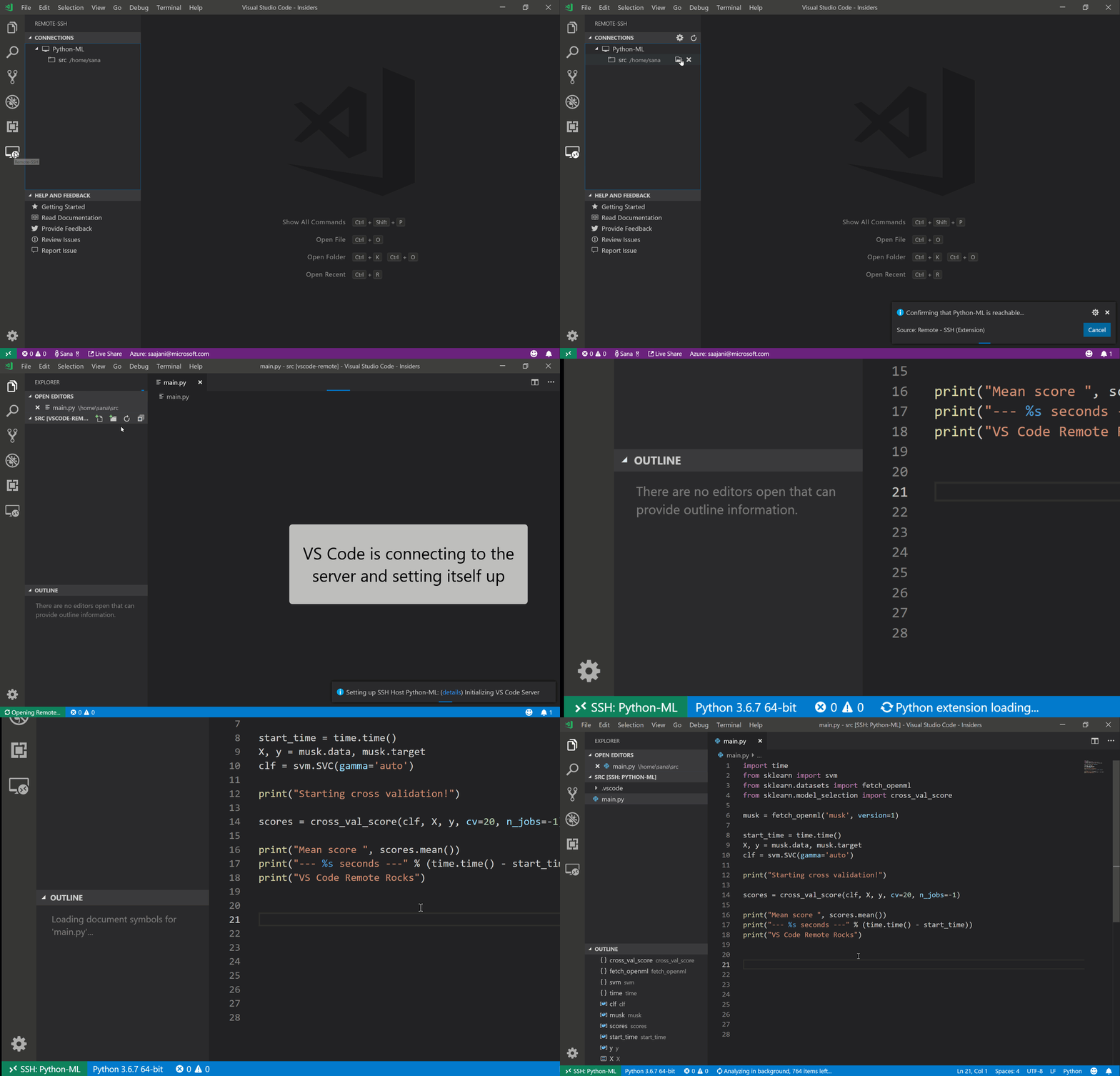
The Visual Studio Code Remote - SSH extension allows you to open a remote folder on any remote machine, virtual machine, or container with a running SSH server and take full advantage of VS Code's feature set. Once connected to a server, you can interact with files and folders anywhere on the remote filesystem.
No source code needs to be on your local machine to gain these benefits since the extension runs commands and other extensions directly on the remote machine.
Learn More about Remote-SSH with Visual Studio Code.
-
-
iTerm
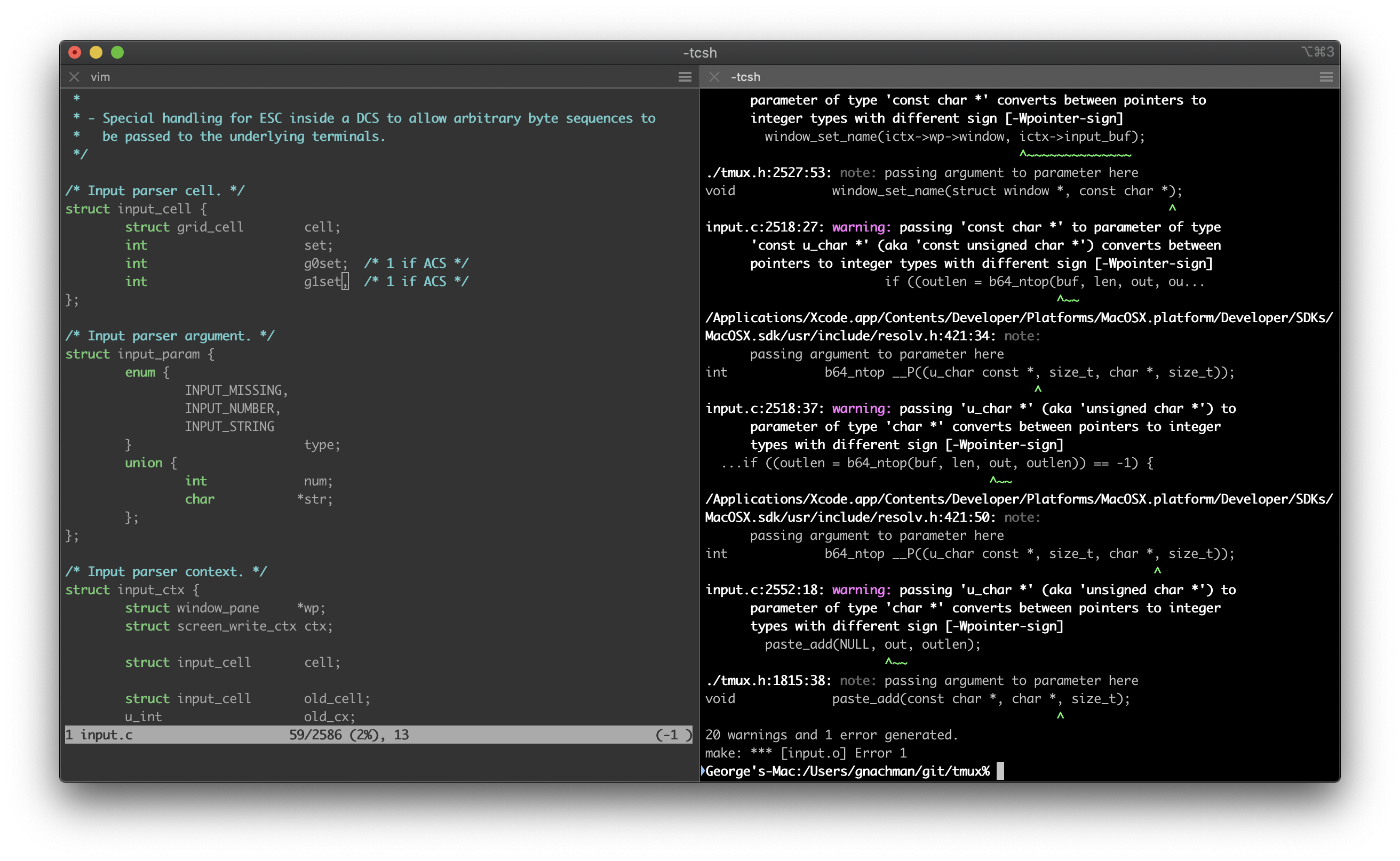
iTerm is one of the most popular terminal emulators in the world. It is very frequently used by developers because it processes untrusted data.
The most recent version is iTerm 2. It works on Macs with macOS 10.14 and newer. A few of the most popular features are Split Panes, Search, Autocomplete, Copy Mode and Paste History; but there are many more. See a list of features here https://iterm2.com/features.html
-
Postman
Postman is a collaboration platform for API development that will make it very easy for you as a developer to create, test, share and document APIs. The Users are able to create and save simple and complex HTTP/s requests and read their responses. The steps of the API lifecycle get simplified by Postman and it allows you to create better APIs faster.
Postman provides you with API tools, an API Repository, Workspaces and Intelligence.

-
Firefox
You have likely heard of this Browser before, but you may not know why it is very useful for developers.
Firefox offers a very reliable performance, even with many tabs open.
It is opensource and is the best-secured browser to date by looking for Data breaches and blocking trackers automatically.
This browser also offers a variety of tools for developers. To open the Core Tools, you select Tools > Web Developer > Web Developer Tools from the menu. You can also use the Shortcut CTRL + Shift + I or F12 on Windows and Linux, and Cmd + Opt + I on macOS.
You will find tools like the Page Inspector, Web Console, JavaScript Debugger, Network Monitor, Performance Tools and many more.
I especially like the CSS inspection in Firefox when working with svg and polygon elements. It makes the experience a lot easier and much more intuitive.
Page Inspector

Web Console

Javascript Debugger

-
Onetab
Whether you’ve been a developer for years or you’re just starting out, you likely know the problem of having 500 different tabs open with things you might need in the future.
Onetab is a great option to save up to 95% of memory and reduce tab clutter. Once installed, you simply click the OneTab Icon to convert all of your tabs into a list.
Before: 1981 MB memory usedAfter: only 99 MB memory used -
ES Lint
This is a static code analysis tool to identify problematic patterns in your JavaScript Code. The rules in ESLint are configurable and you can define and load your customized rules. The extension uses the ESLint library installed in the opened workspace folder. If the folder doesn't provide one the extension looks for a global install version. If you haven't installed ESLint either locally or globally do so by running npm install eslint in the workspace folder for a local install or npm install -g eslint for a global install.
On new folders you might also need to create a .eslintrc configuration file. You can do this by either using the VS Code command Create ESLint configuration or by running the eslint command in a terminal. If you have installed ESLint globally (see above) then run eslint --init in a terminal. If you have installed ESLint locally then run .\node_modules.bin\eslint --init under Windows and ./node_modules/.bin/eslint --init under Linux and Mac.

You can find more information by following this excellent guide here
-
Bonus - Framework
-
Oh-My-Zsh
Oh My Zsh is an open source, community-driven framework for managing your Zsh configuration.
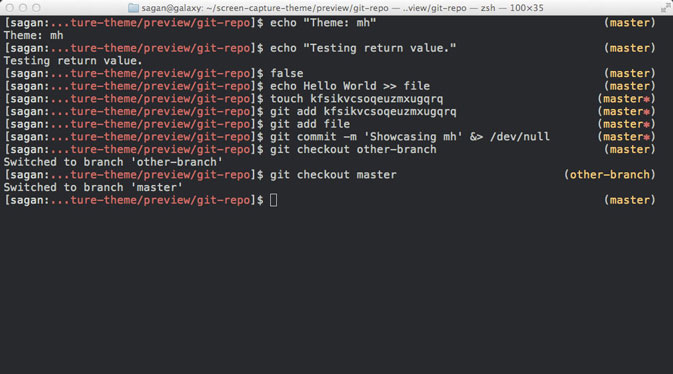
My macbook installation came with
Zshout of the box and I gave this a shot. Since then,I've grown accustomed to this set up. It works super well for me and I recommend this example configuration at your root directory. Feel free to choose a theme that works best for you and further customize it!# If you come from bash you might have to change your $PATH. # export PATH=$HOME/bin:/usr/local/bin:$PATH # Path to your oh-my-zsh installation. export ZSH="/Users/your-user-goes-here/.oh-my-zsh" # Disabled permission error ZSH_DISABLE_COMPFIX=true # Set name of the theme to load --- if set to "random", it will # load a random theme each time oh-my-zsh is loaded, in which case, # to know which specific one was loaded, run: echo $RANDOM_THEME # See https://github.com/ohmyzsh/ohmyzsh/wiki/Themes ZSH_THEME="cloud" # Set list of themes to pick from when loading at random # Setting this variable when ZSH_THEME=random will cause zsh to load # a theme from this variable instead of looking in $ZSH/themes/ # If set to an empty array, this variable will have no effect. # ZSH_THEME_RANDOM_CANDIDATES=( "robbyrussell" "agnoster" ) # Uncomment the following line to use case-sensitive completion. # CASE_SENSITIVE="true"
-
Conclusion
In conclusion.. there are many aspects of being a developer and having a great workflow is one of them. However you decide to configure your editor or your shell integration, there is always room for creativity! Be sure to check out any articles below on other topics that might interest you.


